Click any image to see a full-screen preview.
HamClock in Windows
Maybe you prefer Windows, only have a Windows computer, or just want to try HamClock to see what it can offer before acquiring a single board computer. A Linux sub-system can be installed in Windows in which HamClock will run. This is how to do it...the easy way.
Start by accessing your Windows computer BIOS and check if Virtualization is on. In many types of BIOS, it is also called SVM mode. Next, in Windows Search, look for 'Turn Windows features on or off' and open the dialogue. Scroll down the list and place checkmarks against Windows subsystem for Linux, Virtual Machine Platform and Windows Hypervisor Platform. Press OK and after the installation, reboot.
Open a Windows Powershell Terminal 'as administrator'. Type wsl -install
The subsystem and Ubuntu Linux distribution will be installed. You will be prompted to set an account name and password. Your Windows start menu will now have Ubuntu listed for when you want to access Linux.
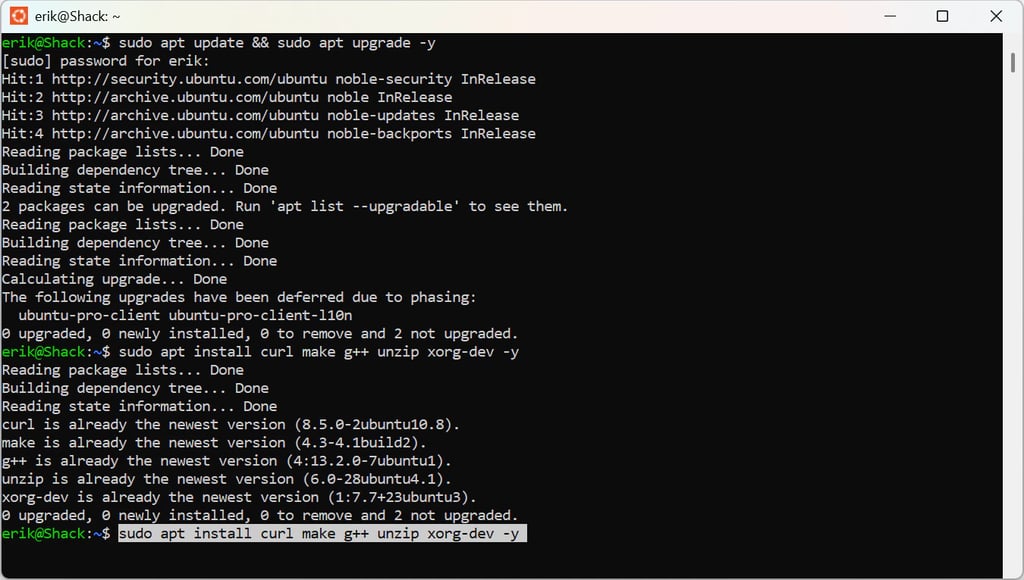
In the Linux Terminal, enter sudo apt update && sudo apt upgrade -y followed by sudo apt install curl make g++ unzip xorg-dev -y
Now in Windows download HamClock from my Dropbox and save it to your Downloads folder. The URL is
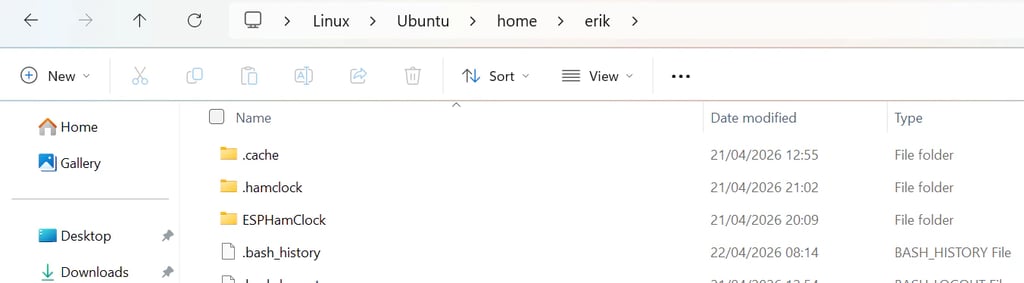
We need only the ESPHamClock folder so copy it to \\wsl.localhost\Ubuntu\home\{your-username} using the Windows file manager.
Go back to the WSL Linux Terminal windows and enter these commands in turn
cd ~/ESPHamClock
sudo make help
sudo make hamclock-1600x960
or whatever your preferred size from the presented list. Unlike with Pi, there is no make install.
./hamclock-1600x960 (plug in your selected size) will open HamClock and you can do the configuration.
As it stands, your HamClock is defaulting to ClearSkyInstitute so this must be changed to open-hamclock-backend
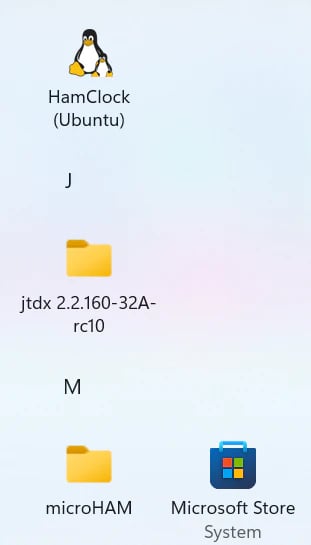
If you are on Windows 11 or have WSLg installed, WSL can automatically add Linux GUI apps to your Windows Start menu.
Create a file named hamclock.desktop in /usr/share/applications/:
sudo nano /usr/share/applications/hamclock.desktop
Paste the following content (change the size to whatever you compiled)
[Desktop Entry]
Name=HamClock
Exec=/full/path/to/hamclock-1600x960 -b ohb.hamclock.app:80
Type=Application
Terminal=false
After saving, "HamClock" should appear in your Windows Start Menu within a few seconds.
If you want to automatically start HamClock at Windows launch, simply copy a shortcut of the start menu icon to the Startup folder as with any Windows application.
If any images are not displaying properly, click them for a full screen preview.